Features

What Lessonling does, in detail.

You decide what each student practises. Charlie (the student’s personal AI practice assistant) turns your instruction into practice in Telegram between lessons, adapts it to how the student answers, and tells you what needs attention before the next lesson. Around it, the administration of students, lessons and packages is free.

Try Charlie free:

  • 1 student
  • up to 10 exercises
  • up to 14 days
  • Whichever comes first

Your instruction after the lesson

Each lesson can carry what the student should practise next. You write it in your own words; Charlie works from it until the next lesson.

Two goals, your instructions, the problem areas

In the lesson dialogue, under “AI practice (Charlie)”, you give the practice a first goal and, if you want, a second one. Each goal has its own instructions, and Charlie uses them verbatim: the topics to use, the words to bring in, how to correct, what not to introduce. The problem areas – what this student keeps getting wrong – apply to both goals.

Charlie works on the active goal. It moves to goal 2 after the number of correct answers in a row you set for the student, and you can switch the active goal yourself at any time. The move is counted, never left to the AI.

Filled for you, checked by you

You do not have to type it all. “Fill from shared document” drafts the fields from that lesson's section of the student's shared document, “Fill from notes…” drafts them from your own notes, and you can dictate instead of typing. Nothing is saved until you save the lesson.

Or just tell your Telegram assistant

After the lesson, write or say to your assistant what you did and what the student should practise. It drafts the lesson, the goal, the instructions, the problem areas and the words, and asks “Record it?”. Yes saves it; No leaves everything as it was.

Lesson notes from your shared document

Many teachers keep a shared Google Doc per student. Link it on the student's profile and tell Lessonling how each lesson's heading looks; the lesson dialogue can then draft the lesson record and the practice instruction from that lesson's section, for you to check and save. Drafting uses the AI, so it is part of the Charlie plans.
AI practice (Charlie)You write · example
Goal 1
Past simple of irregular verbs in short answers
Instructions for goal 1 (used verbatim)
Weekends and travel. Use went, saw, took, came, had. Don't introduce past perfect.
Goal 2
Tell a longer story about a trip without slipping into the present
Instructions for goal 2
Voice answers where she can. Keep the whole story in the past.
Active goal
Goal 1
Problem areas (both goals)
  • present tense in longer stories
  • articles before professions
Fill it for you
  • Fill from shared document
  • Fill from notes…
  • Dictate

Per-student AI practice settings

Every student has an AI practice tab. Nothing here needs touching to start – the defaults are sensible – but each one is yours to change.

  • Enable AI practice for this student

    The switch that gives a student Charlie. One switched-on student is one seat in your plan; switch it off and the seat is free again.

  • Practice using

    Ticks for Conversation, Role-play, Speaking / voice messages, Vocabulary & phrases, Grammar, Writing and Picture description.

  • Exercise selection

    Let Charlie choose, Prefer the ticked types, or Only the ticked types.

  • Daily exercise time and practice days

    When the daily exercise arrives and on which days. The student can change the time on their own page.

  • Maximum extra exercises per day

    How many exercises beyond the daily one a student can ask for.

  • Advance to goal 2 after N correct in a row

    How many correct answers in a row move practice from the first goal to the second.

  • Reading replies aloud

    Never, When the student sends a voice message, or Always.

  • Let the student try to fix short exercises first

    One checkbox, on by default: in short exercises the student gets one try at fixing a slip before seeing the correction.

  • Support language

    Once the student has a support language, one tick lets Charlie use it for task wording, feedback and explanations. Otherwise Charlie keeps to the language being learned.

  • About the student (for Charlie)

    Field of work, interests and hobbies, about their life, coming up, and topics to avoid – so exercises fit the student's life and stay away from what they would rather not discuss.

  • Vocabulary list

    Paste words with a translation and an example. Charlie draws on the list, favouring the words that have come up least, and the student can add to it from their page.

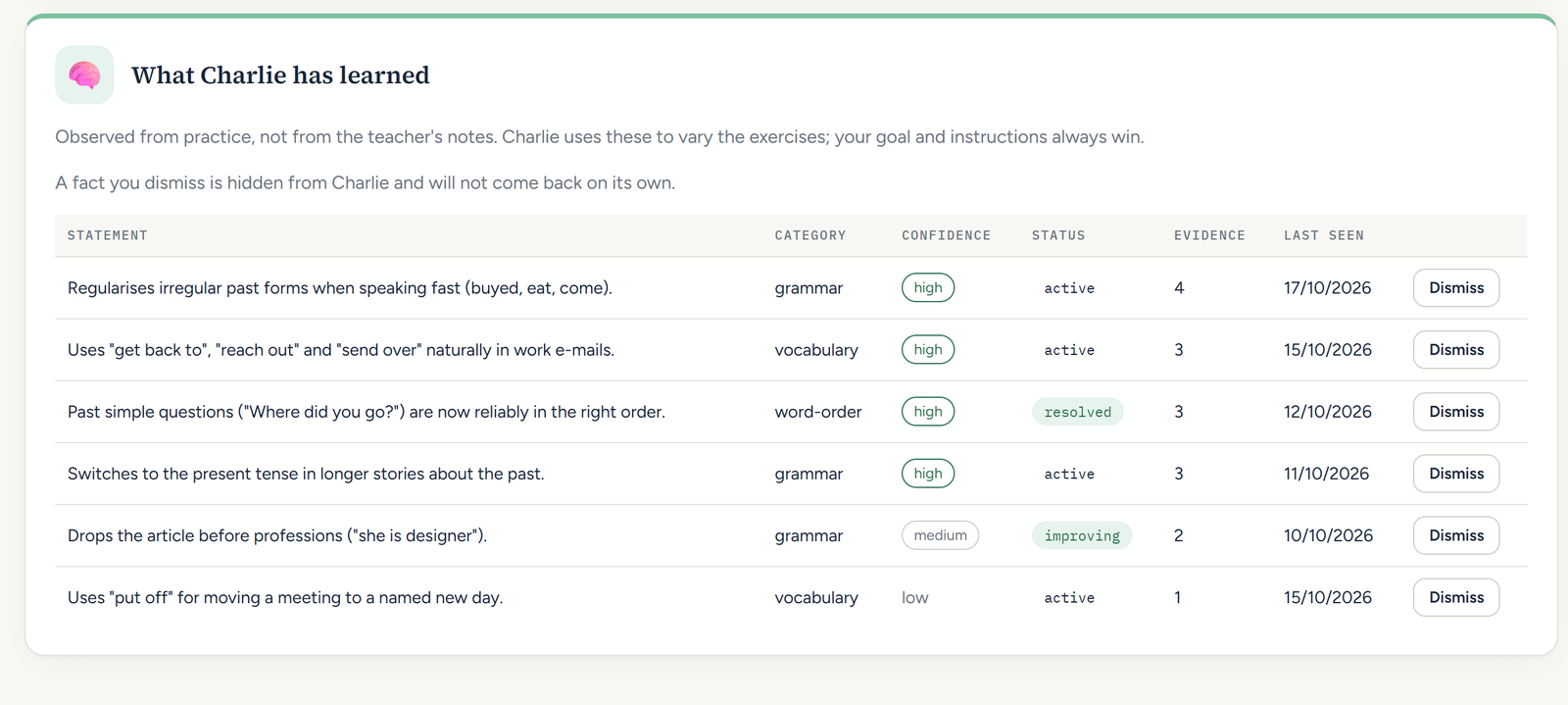
  • What Charlie has learned

    Charlie's observations about the student, each with a category, a confidence, a status and the evidence behind it. A wrong one can be dismissed.

What Charlie does in Telegram

Students practise in an ordinary Telegram chat, by text or by voice. Charlie writes in the language the student is learning, at their level, from your instruction.

Practice typeWhat the student does
ConversationA back-and-forth over several messages: a free conversation, a guided conversation Charlie steers toward the goal, an information-gap game, or an opinion to agree or disagree with.
Role-playA realistic scene – a hotel, a shop, a meeting – with a role for Charlie and one for the student, closed with a short debrief.
Speaking / voice messagesAnswering by voice, continuing a story or playing a scene. Charlie transcribes the voice message and replies to what was said.
Vocabulary & phrasesRecalling words and phrases and using them in sentences of one's own.
GrammarGrammar in context: fill-in, multiple choice, sentence building and correction, reformulation, translation, short answers.
WritingMicro-writing: a message, a few sentences about one's day, a story continued.
Picture descriptionCharlie sends a generated picture full of small, nameable details; the student describes what they see.

Voice both ways

Students can answer by voice message; Charlie transcribes it and replies to what was said. Charlie reads its replies aloud when the student asks, or as the “Reading replies aloud” setting says.

Buttons under each exercise

The student is never stuck: depending on the exercise, the buttons offer Hint, Explain, Skip, Another, Try again, Too easy, Too hard, Say it aloud and Show me. Saying “too hard” or “skip” in their own words works too.

More when they want it

Besides the daily exercise, a student can ask Charlie for another one at any time, within the daily limit you set. They can ask how they are doing and get an overview of the last 14 days. They can say “not today” or pause practice, and Charlie respects it.

Not yet available

Listening practice. If a student asks for it, Charlie says it can't do listening practice yet.

Buttons in the chat
  • Hint
  • Explain
  • Skip
  • Another
  • Try again
  • Too easy
  • Too hard
  • Say it aloud
  • Show me

Correction that helps, not overwhelms

In short exercises – fill-in, multiple choice, sentence building or correction, reformulation, translation, short answers, recall – Charlie first points to the slip and lets the student fix it themselves. One try, always skippable. This is the one correction setting per student, on by default.

After that, the student gets the fully correct sentence with the practised part in bold and one short explanation of that mistake. Other slips are fixed quietly in the corrected sentence; the student can ask for the next explanation, one at a time.

In a conversation, a slip never stops the scene: Charlie answers in character, may nudge once, and keeps the corrections for the debrief at the end. Your instructions shape the exercises and conversations Charlie writes; how short exercises are corrected follows the fixed rules above.

  1. Charlie

    Fill the gaps with the past simple: 1. Yesterday I ___ (go) to the market. 2. Last summer we ___ (take) the train to Vienna.

  2. Student

    1. went 2. taked

  3. Charlie

    There's a slip in item 2 – want to fix it yourself?

  4. Student

    took

  5. Charlie

    Yes 👍 Last summer we took the train to Vienna.

A difficulty ladder the student can feel

Practice on each goal starts easy and steps up as the student gets answers right. The step is decided from the student's own results, never left to the AI.

Beginners get one focus and one requirement per exercise. Stronger students may get two points at once only when the exercise is otherwise easy. Decisions and negotiations are kept for conversations, never crammed into a one-message task.

“Too hard” – the button or just the words – swaps the open exercise for an easier one on the same point straight away. Skipping is not counted as a failure. “Too easy” is taken into account for the next one.

  1. See itin the lesson, with the teacher
  2. Remember itrecall, fill-in, short answers
  3. Use itown sentences, short writing
  4. Use it spontaneouslyconversation and role-play

Comes back to known weak spots

The problem areas you entered and what Charlie has learned about the student – recurring mistakes, words that cause trouble – steer the exercises that follow. When Charlie picks the next exercise, the most relevant of them are worked into it, so a slip from earlier in the week comes up again in a new context. If the student has a vocabulary list, Charlie draws words from it too.

You see every observation Charlie keeps, and can dismiss one that is wrong.

What you get back

A summary before each lesson

Before you meet, your Telegram assistant sends a short summary of the practice since the last lesson: how many exercises were sent, answered and still open, what went well, what the student struggled with, what keeps recurring, and a suggested focus. The suggestion is advice; the decision is yours.

Practice info for each lesson

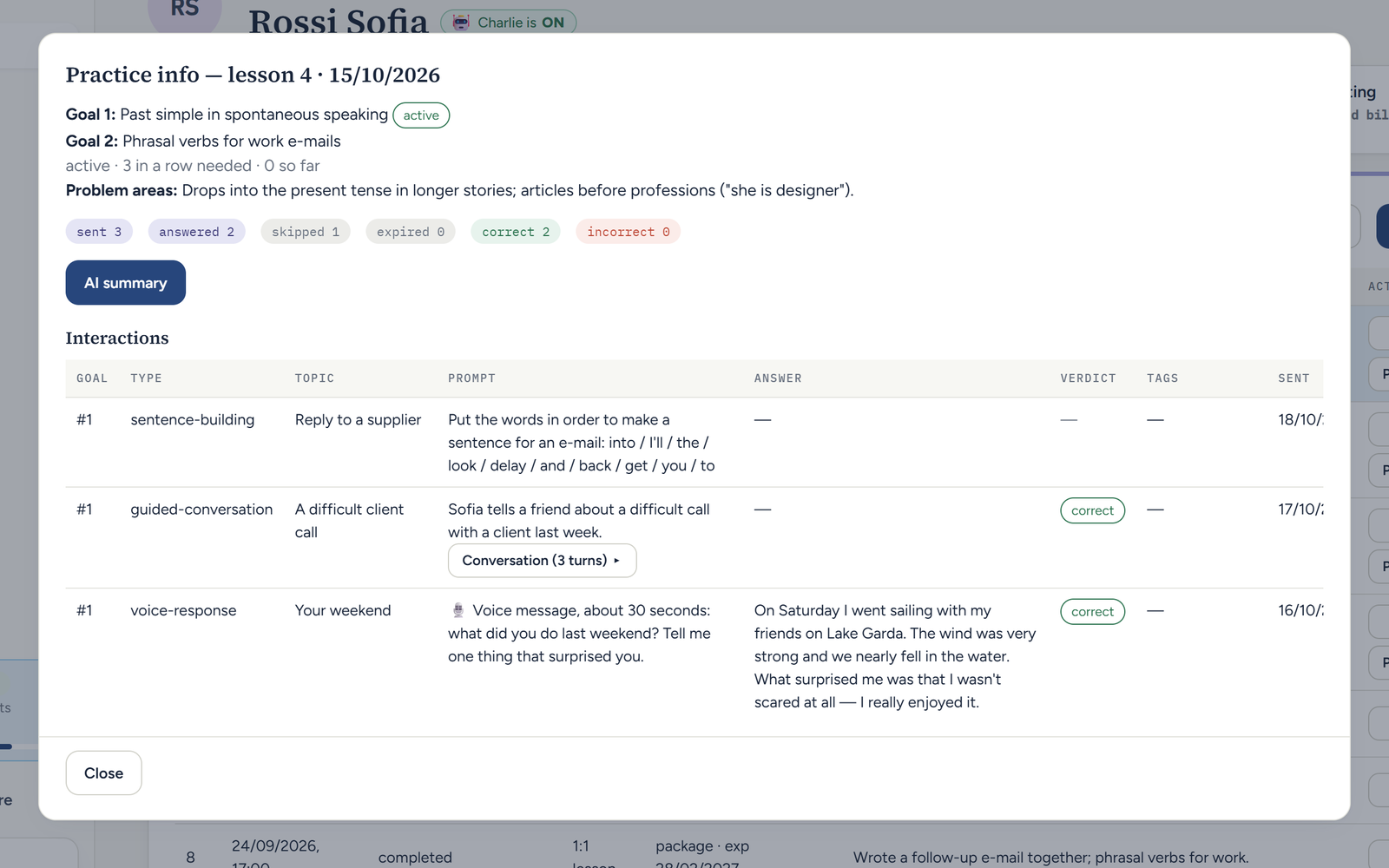
In the dashboard, each lesson's “Practice info” shows the goals, how many exercises were sent, answered, skipped, expired, correct and incorrect, the recurring mistakes, and every exercise with the student's answer and the verdict. An AI summary under “What went well”, “Struggles”, “Recurring mistakes” and “Suggested focus” is marked as advisory: the pedagogical call is yours.

What Charlie has learned

Charlie's observations about the student, one sentence each – for example “Switches to present tense in longer past narratives.” They are kept separate from what you entered, and a wrong one can be dismissed.

A morning report

Today's lessons and who needs your attention, in Telegram each morning if you want it.

📋 Before your lesson with AnnaCharlie to you · example

Practice since the last lesson: 7 sent, 6 answered, 1 still open.

  • Went wellwent and saw are reliable in short answers.
  • Struggled withtook still needs a prompt – she asked for a hint twice.
  • RecurringArticles before professions.
  • Suggested focus (your call)Longer spontaneous storytelling in the past.
The practice info for one lesson: the plan's goals and problem areas, how many exercises were sent and answered, and a table of the exercises with the student's answers, one of them a voice answer.
Practice info for a lesson: goals, sent and answered exercises, and every answer.
The “What Charlie has learned” card: observations about a student, each with a category, a confidence level, a status and the evidence behind it.
What Charlie has learned about a student – each observation with its category, confidence, status and evidence.

Your own Telegram assistant

With a Charlie plan you also get an assistant that works for you, in your own Telegram chat.

  • Record lessons by voice or text. Say who you taught and what you did; it drafts the lesson and the practice instruction, asks “Record it?”, deducts from the right package and tells you the balance left.
  • Lessons that record themselves. If you switch it on, a lesson from your calendar or weekly slot is recorded when it ends, and the assistant tells you which package it took – with an undo button.
  • Balances and packages. Ask who has lessons left or who needs a new package.
  • The summary before each lesson and the morning report described above.

When something is unclear – two students with the same name, two lesson types – it asks instead of guessing.

Your assistant
Example
  1. You
    Voice message, 0:24
  2. Assistant

    Lesson: Anna, today, 60 min
    Goal: past simple of irregular verbs in short answers
    Instructions: weekends and travel
    Problem areas: present tense in longer stories
    Words (5): went, saw, took, came, had
    Record it?

  3. You

    Yes

  4. Assistant

    Recorded and deducted from her package – 6 lessons left.

Free

Everything around the lesson, free

The administration side costs nothing and works with or without Charlie. It stays free when the AI trial ends.

Students

A profile per student: contact details, the language they learn and their support language, level, time zone, notes and invoicing details. An activity trail shows every change made to the student's records. Students can be archived when they stop.

Lessons

Record a lesson in one dialogue: date, length, type, what you covered and the difficulties you noticed. A wrongly recorded lesson can be deleted and its credit given back.

Prepaid packages and automatic deduction

Sell packages of lessons with a price, a lesson length and an expiry date. Each recorded lesson is deducted from the matching package, the one expiring first; if a student has several lesson types you are asked which one it was. A lesson with no matching package is kept as a standalone lesson and you are told, so you can match it later. A package's balance, price and expiry stay editable, with a confirmation for balance changes.

Invoices for pay-as-you-go students

For students who pay monthly, a service with a rate covers their lessons. You create the monthly invoice from the lessons taken – pick lessons or set the amount – and record when it was sent and paid. A monthly reminder tells you when it is time.

Calendar and Google Calendar

A month view of every student's lessons. Connect Google Calendar and each student's next lesson comes from your own events; regular weekly slots work as well.

The student page

Every student gets a permanent personal link – no account, no password. It shows the next lesson, their package or service, sent-and-unpaid invoices, and lets them ask to cancel or move a lesson if you allow it, with your answers shown alongside. Students with AI practice also connect Telegram, set their exercise time, pause practice, update what Charlie knows about them and keep their vocabulary list there.

Who needs your attention

The dashboard shows today's lessons and flags students whose packages are running low or expiring, by thresholds you set.

Drafting lessons from your shared document uses the AI, so it is part of the Charlie plans – see lesson notes from your shared document.

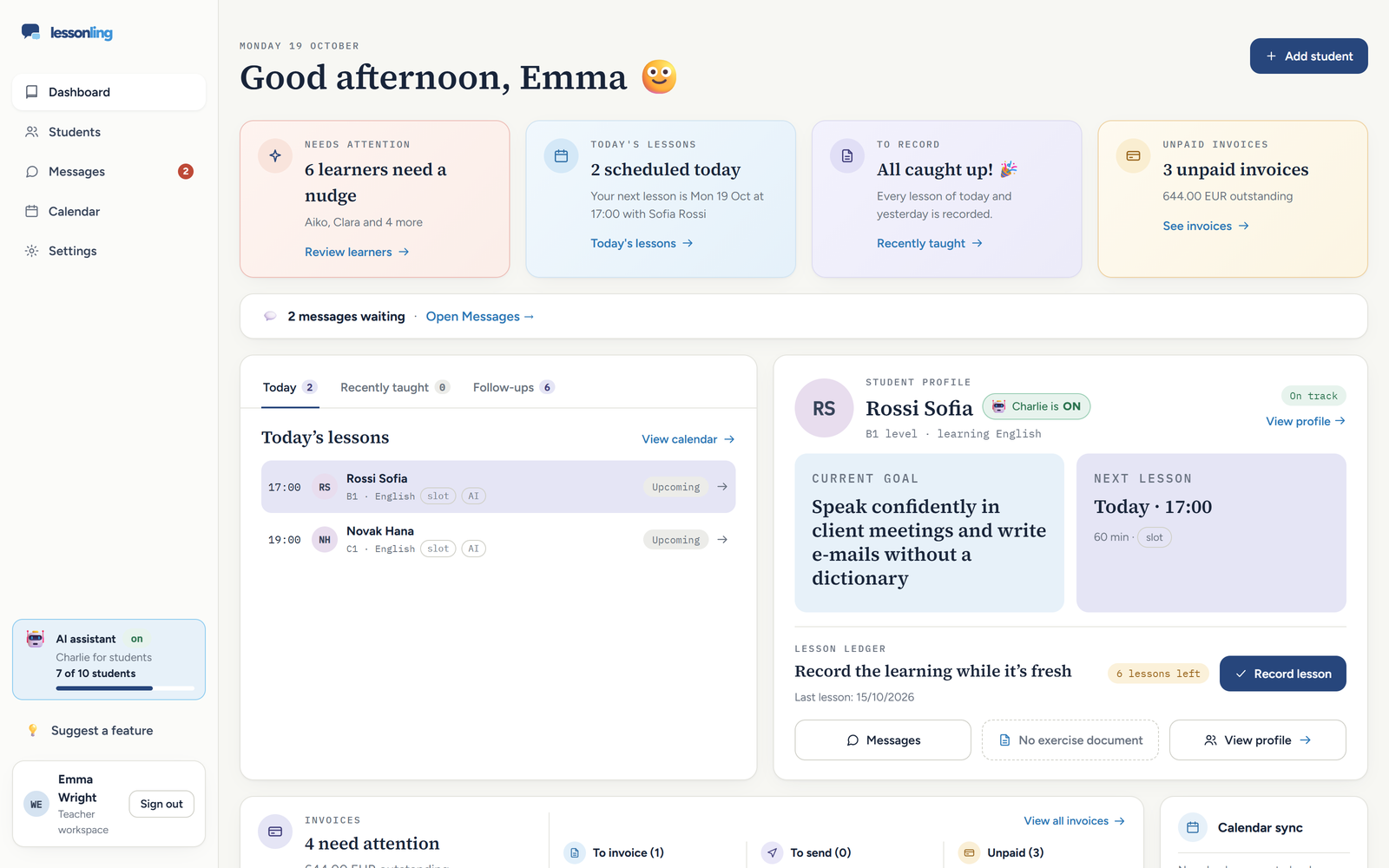
The Lessonling dashboard: tiles for students needing attention, today's lessons, lessons to record and unpaid invoices, above today's lesson list and a student's profile card.
Your teacher dashboard: who needs attention, today's lessons, what is left to record and which invoices are unpaid.
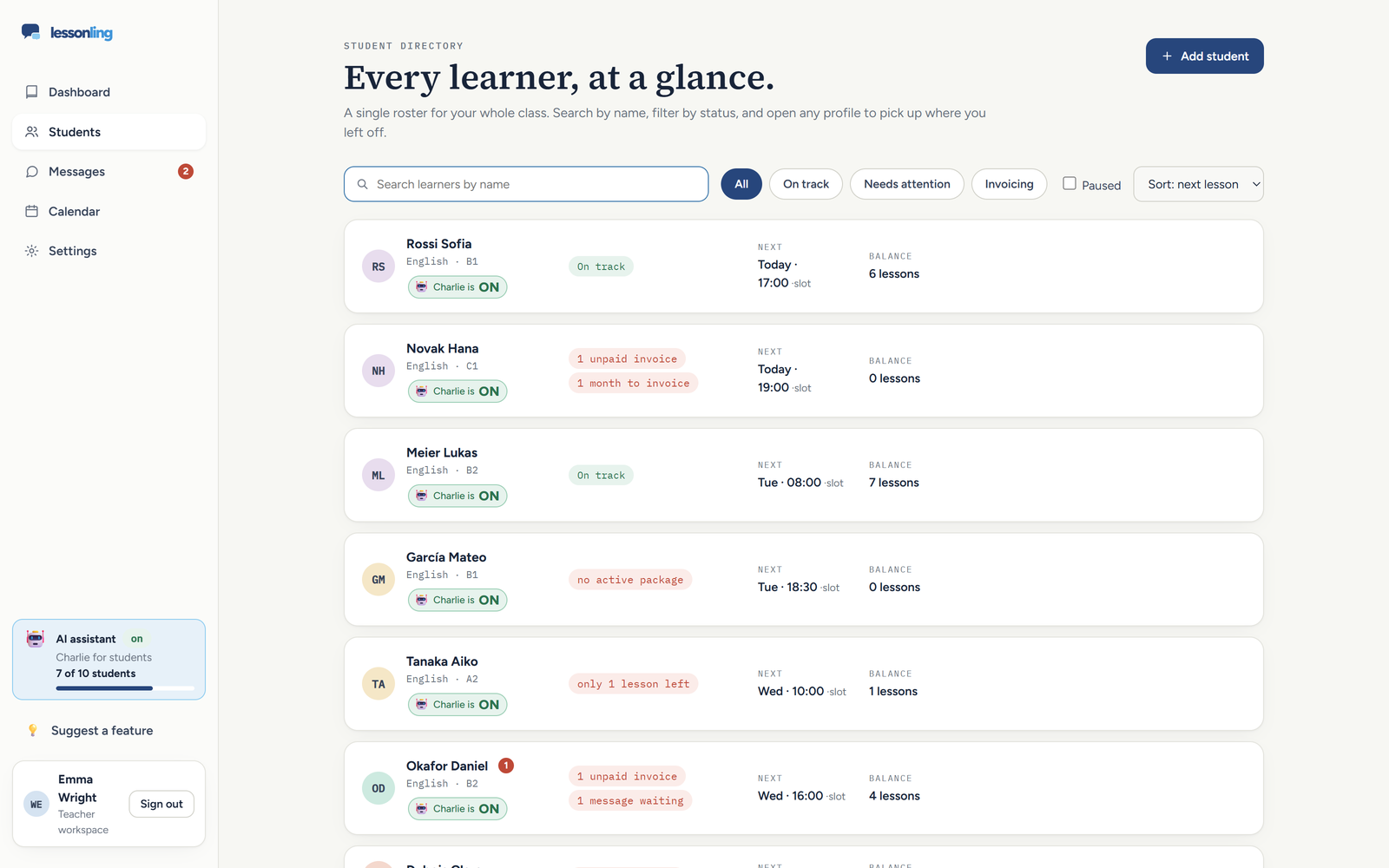
The student list: each student with a status pill, the next lesson and the remaining balance.
The student list in your teacher dashboard: status, next lesson and balance.
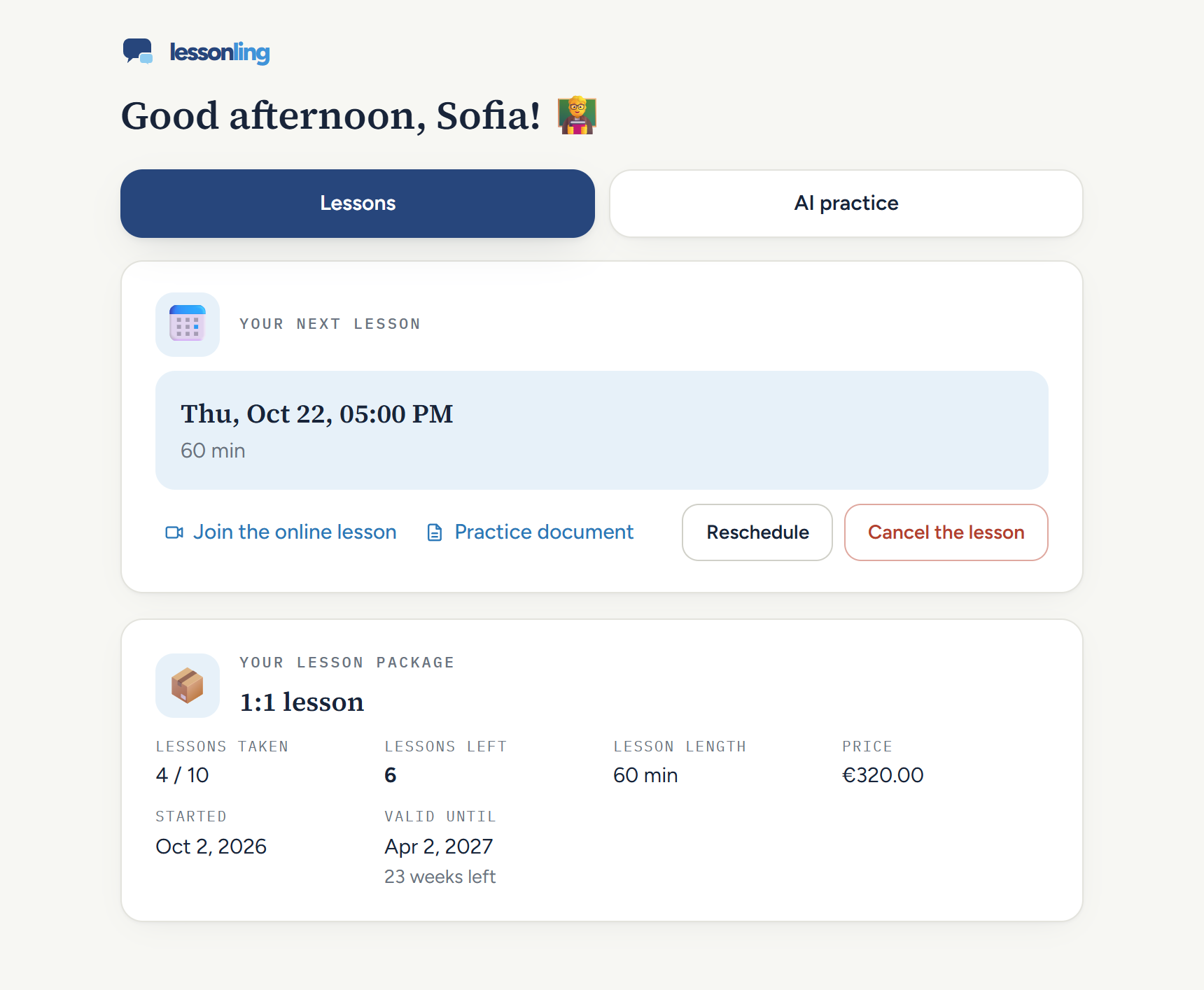
A student's personal page: the next lesson with links to the online lesson and the practice document, Reschedule and Cancel buttons, and the lesson package with lessons left.
The student's own page: next lesson, the links they need, a way to ask you to move or cancel it, and their package. On the AI practice tab they set up Charlie for themselves: a bit about them, exercise time, read-aloud replies, their own vocabulary, or a break.

Try Charlie free, then pick a plan

The free AI trial starts automatically when you register – no request is needed. It gives you Charlie for 1 student for up to 10 exercises or 14 days, whichever comes first, together with your own Telegram assistant for the same period.

When either limit is reached, Charlie switches off until you choose a paid plan. Lessonling's free administration features remain available.

Free

Everything around the lesson

0 EUR / month

Free for as long as you use it

Free forever
  • Students, lessons and prepaid packages
  • Automatic deduction from packages
  • Invoices, calendar and Google Calendar
  • A personal page for every student
Free AI trial

Includes the Charlie trial: 1 student, up to 10 exercises or 14 days – whichever comes first.

  • 1 student
  • up to 10 exercises
  • up to 14 days

Trial ends when either limit is reached first.

Start free

Charlie 15

AI practice for up to 15 students at a time

49 EUR / month, excl. VAT

or 490 EUR a year – ten months' price

  • Everything in Free
  • Charlie practises with up to 15 students at a time
  • Your own Telegram assistant
  • Lesson notes from your shared document
Get Charlie 15

Prices are excl. VAT; VAT is added at checkout. Plans are bought inside the dashboard after you sign up.

Try it with one student.

Register, add a student and leave Charlie an instruction after your next lesson. Try Charlie free with 1 student – up to 10 exercises or 14 days, whichever comes first.